

This tab only appears on gift cards. Physical gift cards are included in every plan (VEXiON ONE and VEXiON PRO) and are managed on a computer.
How physical gift cards work
The important idea is that a printed card carries no money until you activate it. Each card moves through three states:- Inactive the card is printed but empty. If it is lost or stolen before it is sold, it is worthless: scanning it just shows that the card has not been activated yet.
- Activated a staff member has taken payment and loaded a balance onto it.
- Registered the customer has scanned it, entered their details, and added it to their wallet.
1. Create a series
A series is one print run of your cards. Click New series. You go through three steps. The bar on top shows where you are.Design
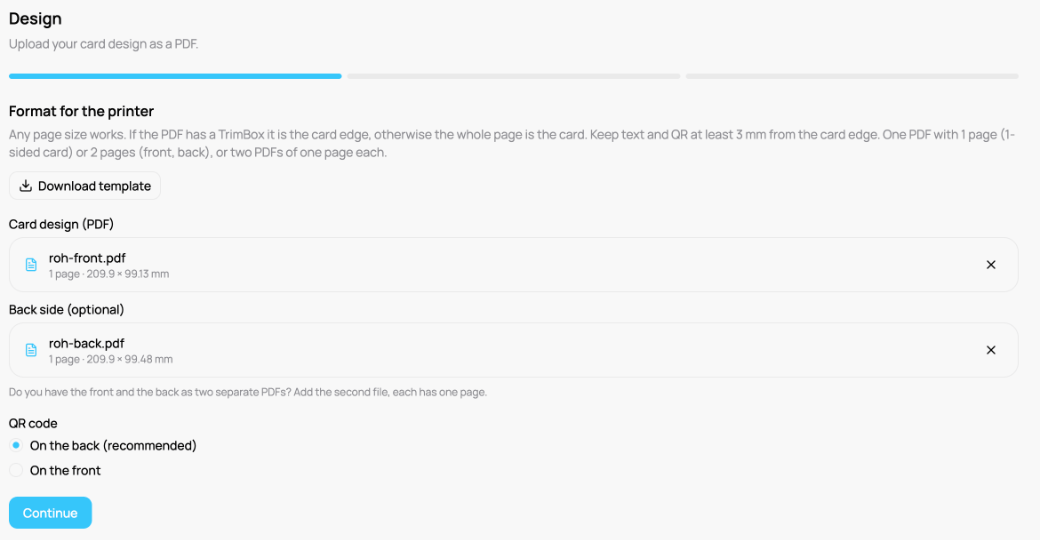
Upload your card design as a PDF. It can be any size, for example a business card, a DL voucher or an A4 page.- If the PDF has a trim box (TrimBox), that is the edge of the card. Without it, the whole page is the card.
- One PDF with 1 page is a 1-sided card. One PDF with 2 pages is a front and a back.
- Your print shop may have sent the front and the back as two files. Upload the first one, then click Add the back side (PDF) and add the second. Both must be the same card size (at most 1 mm apart).
- Download template gives you a sample card PDF that you can hand to your designer. You do not need it if your print shop already sent you the design.
- Choose where the QR code goes: On the back (recommended) or On the front.
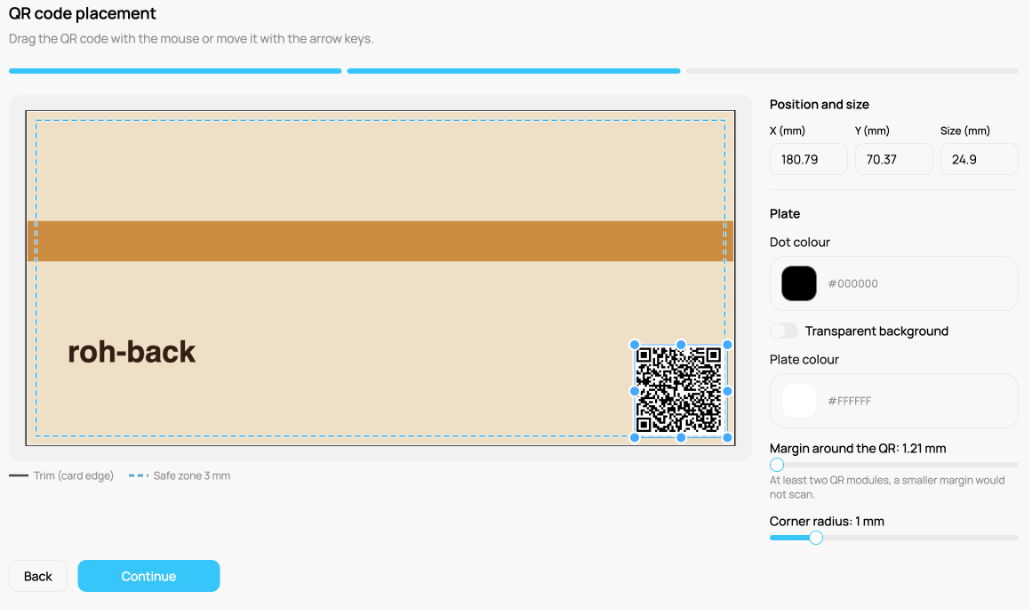
QR code placement
The page you see is exactly what is printed. Drag the QR code to its place. Use the dots on the corners and the sides to make it bigger or smaller. It snaps to the edge, the centre and the safe zone. You can also move it with the arrow keys, or type X, Y and Size in millimetres. A typed value is checked when you leave the field.- Keep the QR code inside the card. A QR code that crosses the cut edge blocks Continue.
- Keep the plate 3 mm from the edge of the card. A note under the picture tells you when it is closer.
- Set Dot colour, Plate colour, Margin around the QR and Corner radius. Transparent background prints the QR code without a plate.
Number of cards
Enter how many cards you want, up to 200 per series, and click Create (for example Create 100 cards). The value of a card is not part of the series. Staff choose or enter it at the sale: in the Scanner they pick one of your preset amounts, at the POS they enter the amount.2. Print and hand off
When the series is ready, you get an email. Its Open printing materials button opens a page where you download each print file with one click. The link works for 30 days. You can also open the series in the list and click Download:- Print file has every card with its own QR code. For 2-sided cards it has the front and the back of each card one after the other, so ask for double-sided printing.
- Design only has your design without QR codes. Send it with Numbers and links (CSV) to a printer that adds the codes itself.
3. Activate it when a customer buys one
Physical cards are activated in the Scanner (or on a connected POS). When a customer buys a card, a staff member:- Scans the card’s printed QR code with the Scanner (see Gift cards on the scanner), or on a supported POS.
- The card opens showing a Balance of 0 and a Top up tab. Under Top up, staff pick one of the preset amounts you set on the gift card. You do not type a free amount, only your presets can be loaded, so a mistap cannot load the wrong sum. A preset can include a bonus, shown as, for example, “+5.00€”.
- Tap Top up. This loads the balance (the amount plus any bonus), sets the expiration (12 months by default), records the sale as paid, and activates the card (its status changes from inactive to activated).
Activating on a connected POS is done in the POS itself, not on the dashboard. For Papaya, see Gift cards. On Dotykačka and Storyous, the first top-up of a printed card in the till also activates it. The steps above describe activating with the VEXiON Scanner.
4. The customer claims it
Once a card is activated, the person who receives it scans the QR code with their phone camera and:- Is asked for their name and email.
- Then adds the card to Apple Wallet or Google Wallet.
5. Spending the balance
Customers spend the balance like any gift card. Staff scan the card in the Scanner (or on a connected POS) and use the Deduct tab to take an amount off the balance (up to what is left). The balance can be spent from either the wallet pass or the physical card, and it always reflects what is left.Your series
The list shows every series with its state. Click a row to open it.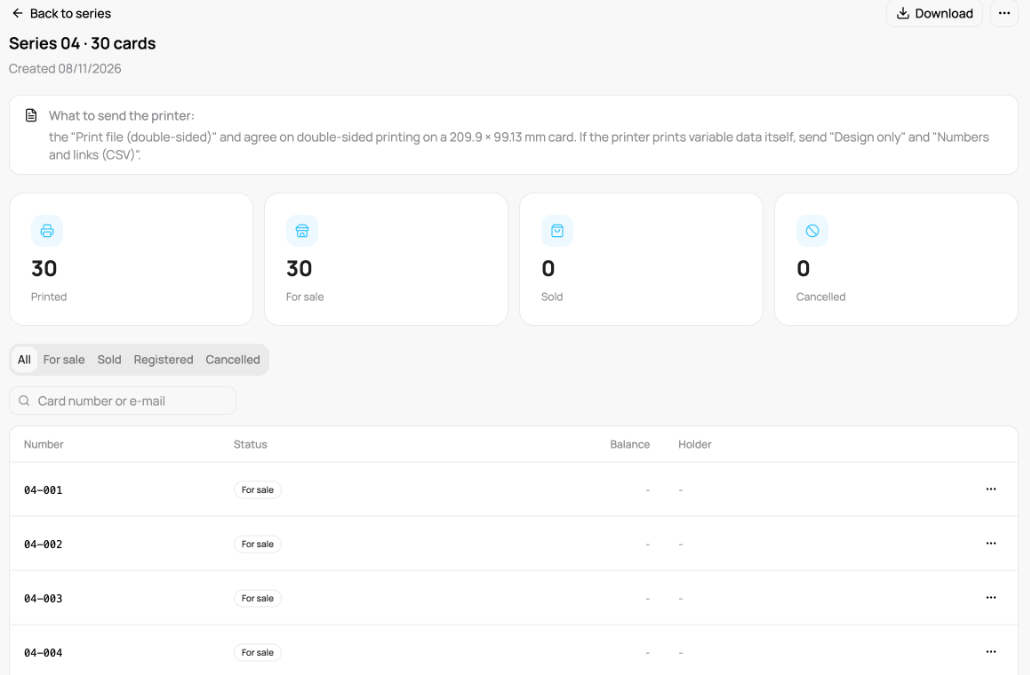
- Cancel on a card that is not sold stops it being sold. A card that is sold cannot be cancelled.
- Send copy on a sold card sends the holder a copy of the card for their wallet.
- Cancel series cancels every unsold card of the series. Sold cards keep working.
Good to know
- Printed cards that are not sold yet do not count as customers. On VEXiON ONE they do not use up your 200-customer limit. A card counts once it is activated (sold).
- VEXiON cards takes no fee on physical gift cards. The fee applies only to online sales through Stripe.