

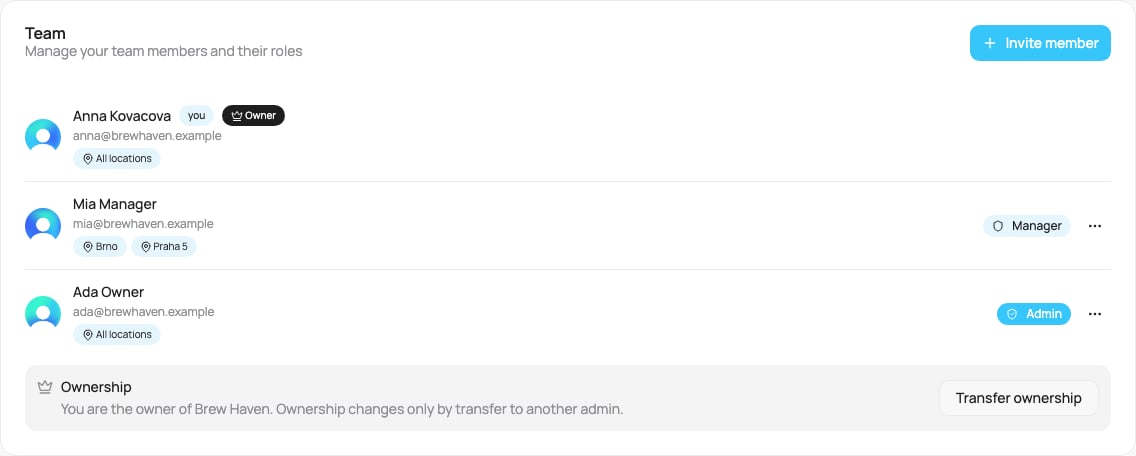
The Team tab
The owner
Every organization has one owner: the person who created it, or the person who received it by a transfer. The owner is an admin with one extra protection:- The owner cannot be removed, suspended, or have their role changed by anybody else, not by another admin and not by VEXiON support. The menu on the owner’s row is switched off, with a short reason.
- Only the owner can hand the organization to another admin.
- The owner receives an email when another admin changes the team (invites, role changes, suspensions, removals), so nothing happens behind their back.
The three roles
This is why the same app looks different for different people, each role only sees what it needs. See the full role matrix.
Inviting a member
Click Invite member. The invite has one or two steps depending on the role.1
Email, role, and locations
Enter their email address and pick a role (Admin, Manager, or Scanner). A short description reminds you what each grants. Then choose their locations, and this is where the roles differ:
- Admin: no location choice. The dialog shows All locations, admins see every location automatically.
- Scanner: pick the one location they work at (single choice).
- Manager: pick one or more locations they can access (toggles). All of them start switched on.
2
Delegated billing (managers only)
If you invited a Manager with at least one delegatable location, a second step appears: “Choose which locations this member will pay for independently.” Toggle on any location you want the manager to be billed for directly, they will get their own subscription and invoice for it (a franchise setup). Leave them all off to keep paying centrally yourself. See Delegated billing.
3
Send
Click Send Invite. They receive an email invitation and join once they accept.
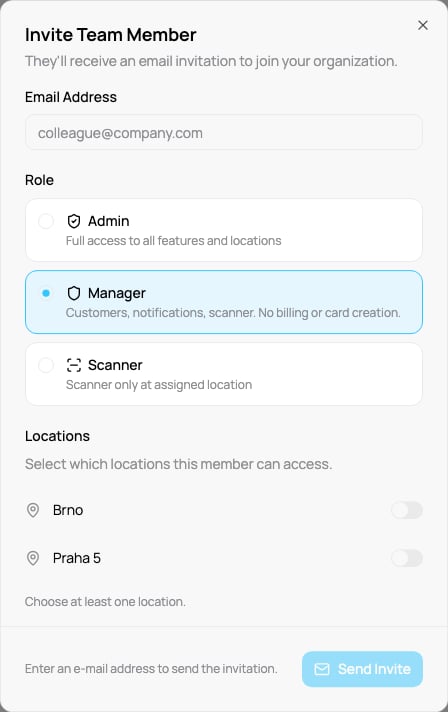
A Manager invite with no location chosen: Send stays grey and a hint tells you why
Assigning the right location up front means every scan a manager or scanner makes is automatically attributed to the correct place, with no “select your location” prompt at the till.
What the person you invited sees
1
They open the invitation
They receive an email invitation and click the button inside it, which opens VEXiON cards.
2
They create a login, or sign in
If they are new to VEXiON cards, they create their login in seconds: they enter their email and get a one-time verification code by email to confirm it (or they can continue with Google), and they land straight inside your organization, in the role you gave them. If they already have a VEXiON cards login, they just sign in and are added.
3
They land in the right place
Admins and Managers land on the dashboard, a Scanner lands on the Scanner screen, always scoped to the locations you assigned them.
If you invited a Manager or a Scanner to a location whose billing is delegated, they will be asked to set up their own billing before they can start. See Delegated billing.
Managing members
An Admin row shows All locations. A Manager or Scanner row lists their locations. Each member row has a ”…” menu with four actions:- Change role: switch them between Admin, Manager, and Scanner. When you turn an Admin into a Manager or Scanner, a window first asks you to choose the location (or locations) they will work at. A Scanner needs exactly one, so a Manager with several locations also picks one when you make them a Scanner. The role changes only after you confirm.
- Assign locations: open a dialog to change which locations they can access. It has a Select all toggle and a switch per location (a scanner picks a single location instead). Save stays grey while no location is chosen: a Manager or Scanner always keeps at least one. A Scanner works at one location only. To move a Scanner, pick the new location and save, the move happens in one step. In the location editor (Settings, Locations) a Scanner who already works somewhere else is marked with the hint “already at [location]” (see the picture below). Locations that are already delegated are marked with a badge. See what they see at the till.
- Suspend: stop their access for now without losing anything. See Suspend and resume.
- Remove: take them off the team, after a confirmation. They lose access to this organization, and their past actions stay in the history. See Removing a member.
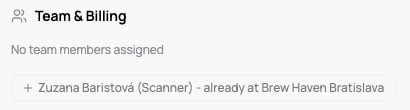
Assigning a Scanner who already works at another location
You cannot remove yourself: the ”…” menu does not appear on your own row.
A Manager or Scanner is never left without a location. If you try to take somebody off their last location in the location editor, VEXiON refuses and names them: give them another location first, or use Remove here to take them off the team. For the same reason you cannot delete a location while it is somebody’s only location.
Confirming sensitive changes
Removing someone, suspending someone, changing a role, inviting an admin, and revoking an invitation ask you to confirm it is really you. VEXiON sends a one-time code to your email (or asks for your password or second factor, depending on your login). After you confirm, you are not asked again for about 10 minutes. If you cancel the check, nothing is changed.A change takes effect immediately. If an admin is demoted or removed, they can no longer change the team from that moment, even if their page is still open.
Suspend and resume
Use Suspend when somebody should not work for a while (a holiday, a leave, a dispute) but will come back. In the ”…” menu, choose Suspend and confirm.- They lose access to your organization right away. If they have the dashboard or the scanner open, it stops working within a few seconds.
- Their role and locations are kept, and everything they did stays in the history.
- Suspended members stay in the list with a Suspended tag next to the name and a Resume button.
- Click Resume (on the row or in the ”…” menu) and they can sign in again with the same role and locations. They sign in again; nothing is sent to them.
An admin cannot be suspended, because admins keep full control of the team. Change their role to manager or scanner first, then suspend them, or remove them. If you suspend a manager who pays for a location through delegated billing, that billing keeps running.
Removing a member
Remove ends their time on your team. They lose access to your organization. If the person pays for a location through delegated billing, that subscription keeps running, so give the location another payer first.- Everything they did stays in the history (for example in a transaction’s details), with the name and role they had at that time and a small Former member tag.
- Removed people are listed under Former members, with their role, locations and the date they were removed.
- To bring someone back, click Invite again on that row, or invite the same email address as usual. See Inviting somebody who left before.
The owner of the organization cannot be suspended or removed, and you cannot suspend or remove yourself.
Inviting somebody who left before
Invite them with the same email address. When you finish typing the address, VEXiON recognizes them: a note says who they were and fills in their earlier role and locations. Change anything you like, then click Send Invite; nothing is sent before you click. Locations that no longer exist are left out, and the note tells you. Their old history is linked to them again automatically, so their earlier actions and the new ones belong to the same person, and the Former member tag disappears. If the address belongs to a suspended member, the invite window says so and offers Resume instead: suspended people are still on your team, so a new invitation is not needed.Team size depends on your plan. VEXiON cards ONE is a single-user plan, so the Team tab shows a PRO badge; upgrade to PRO to invite staff. See Plans & pricing.